
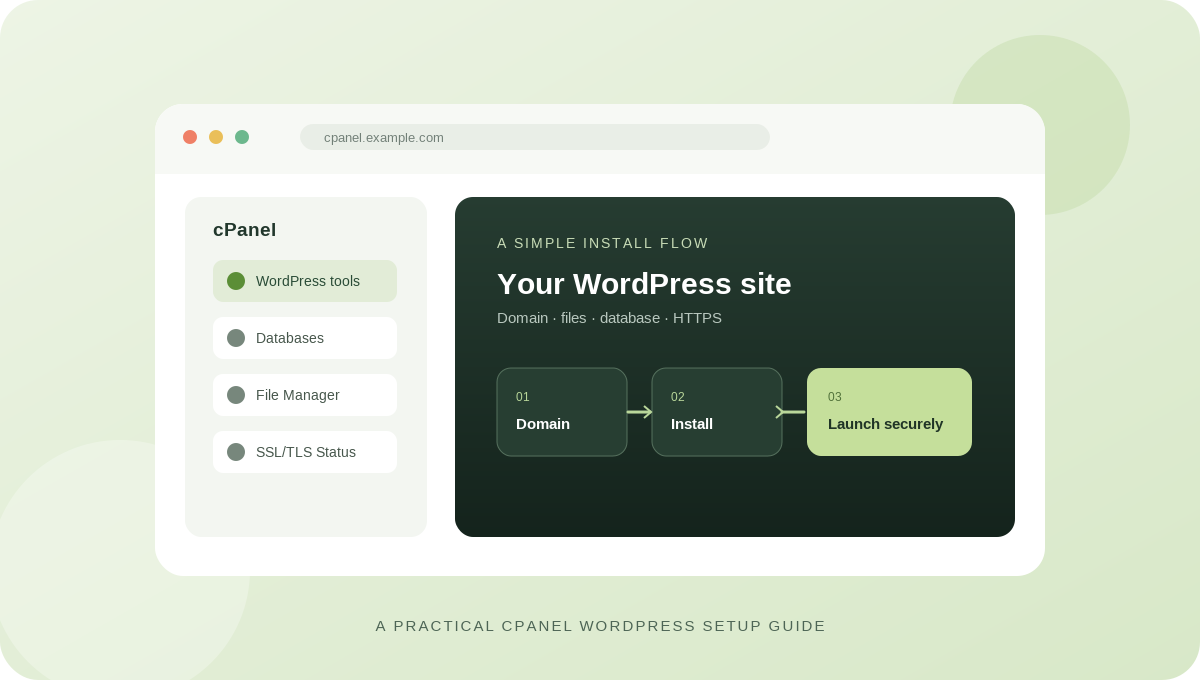
cPanel is a hosting control panel. It gives you tools for your website files, databases, domains, email, and security. WordPress itself is the software that runs your site. Your host may offer a one-click installer such as Softaculous or WP Toolkit; if not, you can install WordPress with cPanel’s File Manager and Database Wizard.
The exact names and availability of cPanel tools vary by hosting provider. The steps below cover both routes and explain how to choose the right folder before you begin.
Before you start
Gather the information you will need, then check the domain and hosting account before creating files or a database.
| What to check | Why it matters |
|---|---|
| cPanel login and domain | You need access to the correct hosting account and know which domain or subdomain will run WordPress. |
| Document root | This is the folder that serves the selected domain. It is often public_html for the primary domain, but addon domains and subdomains can use different folders. |
| SSL certificate | Set up the site using HTTPS. cPanel’s SSL/TLS Status page can show whether the domain has an active certificate; availability depends on your host. |
| Backups and free space | Back up any existing site and database before replacing or moving files. |
| Current server requirements | WordPress.org currently recommends PHP 8.3 or later, MySQL 8.0 or MariaDB 10.11 or later, and HTTPS. Confirm the actual version and compatibility with your host before installing. |
Those are the current recommended baselines from WordPress.org. Some older server versions can still run WordPress, but may have reached end of life and can carry security risk. Ask your host to update the server when it falls below the current recommendation.
Choose where WordPress will live
First decide which URL should open the WordPress site. For an existing website, this choice is especially important.
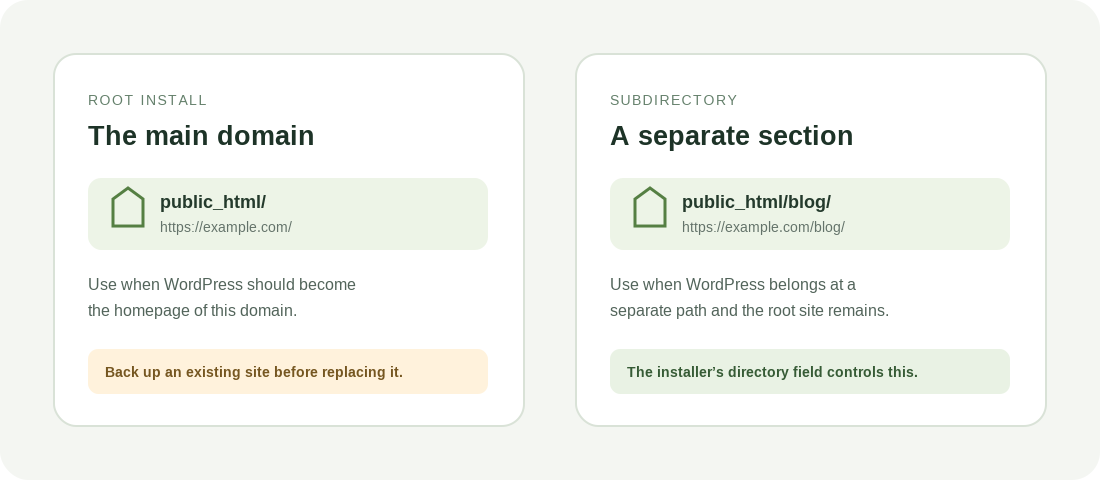
- Main domain: install in the domain’s document root if WordPress should power the homepage, for example
https://example.com/. - Subfolder: enter a folder such as
blogif the site should open athttps://example.com/blog/. The folder is usually created by the installer. - Subdomain: create the subdomain in cPanel first, check its document root, and install WordPress there if you want a separate site such as
learn.example.com.
For the main domain, many cPanel accounts use public_html, but do not assume that this is correct for every domain. Check cPanel’s Domains page or ask your hosting provider to confirm the document root.
Method 1: install with Softaculous or WP Toolkit
This is usually the simplest option. Search cPanel for Softaculous Apps Installer, WordPress Manager, or WP Toolkit. Your host controls which tools appear in your account. cPanel’s WP Toolkit interface may be disabled by the provider.
- Sign in to cPanel and open the WordPress installer or manager.
- Choose Install or Install WordPress. If the tool asks for a protocol, choose
https://once the SSL certificate is active. - Select the correct domain. Set the installation directory to blank for the domain root, or enter a folder name such as
blogfor a subdirectory. - Enter a site name and description. These can be changed later in WordPress settings.
- Create a unique administrator username and a long, unique password. Avoid the default username
admin; use a password manager to generate and save the credentials. - Review database and update options. Installers commonly create and connect a database automatically. Enable reasonable update and backup options if your hosting plan offers them.
- Double-check the domain and directory, then start the installation. Wait for the success screen and save the dashboard address.
When it finishes, open the site in a private browser window and sign in at https://your-domain.example/wp-admin/. If the installation is in a subfolder, include that folder in the login URL.
Method 2: install WordPress manually with cPanel
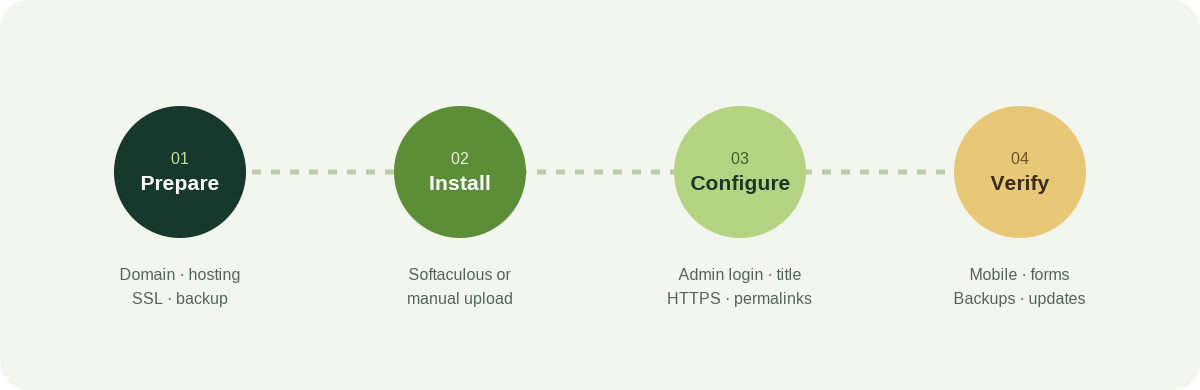
Use this route if your cPanel account does not offer an automatic installer or you need to control the database and files yourself. The workflow is: create the database, upload and extract WordPress into the correct document root, then run the setup wizard.
1. Download the official WordPress package
Download the current package from WordPress.org/download and keep the ZIP file intact for upload. Avoid third-party bundles that include software you did not choose.
2. Create a database and database user
- In cPanel, open Database Wizard or MySQL Database Wizard.
- Create a new database with a recognizable name. cPanel may automatically prepend your account username; record the complete name shown.
- Create a dedicated database user with a strong, unique password. Record its complete prefixed username and password in a password manager.
- Assign that user to the new database and grant the privileges WordPress needs. The wizard’s recommended setup is to grant all privileges to the database user for that database.
Do not use phpMyAdmin to create the database or user; cPanel recommends the Database Wizard for initial setup. The wizard links the user and database for you.
3. Upload and extract WordPress
- Open cPanel’s File Manager and navigate to the document root you confirmed earlier.
- Upload the WordPress ZIP package. If this will replace a site, first make and verify a complete backup.
- Select the archive and choose Extract. cPanel may extract the files into a folder called
wordpress. - For a root install, move the contents of that extracted folder into the domain’s document root so files such as
wp-admin,wp-content, andwp-includessit directly inside it. For a subdirectory install, place those files inside the intended subfolder. - After confirming the extracted files are complete, remove the ZIP archive to save disk space.
4. Run the WordPress setup wizard
Open your chosen HTTPS address in a browser. If the setup screen does not appear automatically, visit https://your-domain.example/wp-admin/install.php (add the subfolder if you chose one).
Select a language, enter your site title, and create the first administrator account. Use a unique username and strong password, provide an email address you can access, and finish the installation.
5. Connect the database if prompted
If the wizard asks for database details, use the complete database name and username from cPanel, the password you saved, and the database host shown by your provider. Many shared hosts use localhost, but that is not universal—confirm it with your host. Leave the table prefix at its default for a new dedicated database, or use a unique prefix if you intentionally share a database.
Secure and configure WordPress
Installation is only the first step. Do these checks before adding real business content or inviting visitors.
- Confirm HTTPS: open both the homepage and
/wp-admin/using HTTPS. If the certificate is not active, use cPanel’s SSL/TLS Status screen or contact your host. Do not force HTTPS until the certificate works. - Review the site address: in WordPress, open Settings → General and confirm the WordPress Address and Site Address use the intended domain and HTTPS URL. Change these only when you understand the effect on the existing site.
- Set readable permalinks: for a new site, consider Settings → Permalinks → Post name, then save. If an established site already has indexed URLs, changing its structure can break links; plan redirects before changing them.
- Update core, theme, and plugins: keep software current and install only trusted plugins that serve a clear need.
- Set up backups: confirm what your host backs up, how often, and how to restore both website files and the database. Keep an independent copy of important backups.
- Check visibility: in Settings → Reading, make sure “Discourage search engines from indexing this site” is unchecked when the public site is ready. A staging site should remain blocked from indexing.
- Test before launch: check desktop and mobile layouts, navigation, forms, contact details, images, and the admin login. Remove demo content you do not intend to publish.
Common installation problems
| What you see | What to check |
|---|---|
| The old site or a blank page still appears | Confirm the domain points to the hosting account and that WordPress files are in that domain’s actual document root—not an extra nested folder. Clear the browser and hosting cache. |
| “Error establishing a database connection” | Check the full prefixed database name and username, password, database host, and whether the user was assigned to the database with required privileges. |
| HTTPS warning or redirect loop | Confirm the certificate is active for both the domain and any www version you use. Check for conflicting HTTPS redirects or mismatched WordPress address settings; ask the host if AutoSSL has not issued a certificate. |
| 404 error on pages after setup | Confirm the install path is correct. For a new site, resave the permalink setting. If this is a migration or existing site, check rewrite rules and redirects before changing them. |
| “Critical error” after adding a plugin or theme | Use the recovery link WordPress emails to the site administrator, or ask your host to inspect PHP error logs. Disable the last changed extension only if you know how to restore it safely. |
Frequently asked questions
Can I install WordPress on cPanel without Softaculous?
Yes. Create a database and user with cPanel’s Database Wizard, upload the official WordPress package with File Manager, extract it into the correct document root, and complete the browser setup wizard.
Does cPanel automatically create the WordPress database?
Some one-click installers create and connect a database automatically. For a manual installation, you create the database and user yourself in cPanel, then enter the details when prompted.
Should I install WordPress in public_html?
Only if public_html is the correct document root for your domain and WordPress should power the domain’s homepage. Addon domains and subdomains may use another folder. Never replace an existing live site without a verified backup and migration plan.
How do I open the WordPress dashboard?
Visit your domain followed by /wp-admin/, using HTTPS. If WordPress is installed in a subfolder, include that folder before wp-admin.
How long does installation take?
A one-click installer may complete in a few minutes after your domain is pointed to the host. A manual setup takes longer because you create the database and upload files. DNS changes and certificate issuance can take additional time.
What if my hosting account does not show a WordPress installer?
Your host may not include Softaculous or WP Toolkit in your plan. Ask support whether the account meets current WordPress requirements, whether HTTPS is available, and whether manual installation is supported.
Official documentation and further reading
This guide follows the current WordPress and cPanel documentation. Interface labels can differ by host and cPanel version.
- WordPress.org: Requirements
- WordPress Developer Resources: Before You Install
- WordPress Developer Resources: How to Install WordPress
- WordPress.org: Use automated installation
- cPanel: Database Wizard
- cPanel: File Manager
- cPanel: WP Toolkit for cPanel
- cPanel: SSL/TLS Status
- WordPress.org: Permalink settings
Planning a WordPress website?
I build and improve responsive WordPress sites, and can help with setup, design, and technical fixes.
Book a 30-minute meeting ↗